

You maday personal projects. Whatever the reason, isn’t it frustrating when you’re looking for something you created and can’t find it?
You might have:
- Dozens of Canva designs
- Multiple versions of the same graphic
- Templates
- Random designs you started but never finished
That’s why organization is key. Creating a simple system to organize your Canva designs can save you time, reduce frustration, and help you complete projects more efficiently.
Organization is a productivity tool that can make your life easier and help you focus more on creating and less on searching for what you need.

Why Creating Systems Matters
Building systems can help you:
- Save time
- Reduce overwhelm
- Avoid recreating work
- Find files quickly
- Stay consistent
- Focus on creating instead of searching
Creating systems doesn’t mean making your life more complicated. A good system simply helps you spend less time figuring out where things are and more time doing the work that matters.
Start by Looking at What You Create
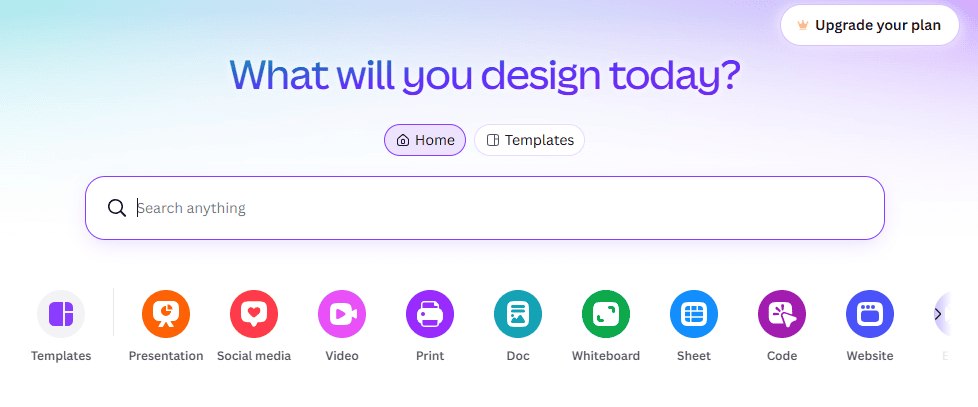
Before creating an organization system in Canva, take a moment to think about what you create most often. Your folders and system should reflect the type of work and projects you actually do.
Graphic designers might organize:
- Client projects
- Logo designs
- Brand kits
- Social media graphics
- Design templates
Digital marketers might organize:
- Social media campaigns
- Email graphics
- Advertising graphics
- Content marketing visuals
- Client projects
Business owners might organize:
- Social media content
- Marketing graphics
- Brand templates
- Presentations
Bloggers might organize:
- Blog graphics
- Pinterest pins
- Featured images
- Social media graphics
If you’re thinking about starting a blog, having an organization system from the beginning can save you a lot of time as your content library grows. Learn how to start a mom blog and begin building your blog with an organized system from day one.
Personal users might organize:
- Invitations
- Family projects
- Holiday designs
- Presentations
- Personal templates
The goal is to create a system that works for you. Think about the designs you create most often and organize your Canva folders in a way that makes it easy to find what you need when you need it.
Create Folders That Make Sense
Let’s look at a few examples of how graphic designers and business owners can organize their Canva folders.
Graphic Designer Example 1: Organizing by Client
A freelance graphic designer who works with multiple clients might organize their folders like this:
📁 Client A
- 📁 Social Media Graphics
- 📁 Branding
- 📁 Presentations
📁 Client B
- 📁 Social Media Graphics
- 📁 Marketing Materials
📁 Templates
📁 Personal Brand
📁 Portfolio
Graphic Designer Example 2: Organizing by Design Type
A graphic designer who creates different types of designs might prefer organizing their folders this way:
📁 Logo Designs
📁 Branding Projects
📁 Social Media Graphics
📁 Presentations
📁 Marketing Materials
📁 Print Designs
📁 Templates
📁 Completed Projects
Both systems can work well. The best option depends on how the graphic designer works and what makes it easiest to find designs quickly.
Business Owner Example 1: Organizing by Type of Content
A business owner who creates a variety of content might organize their Canva folders like this:
📁 Social Media
📁 Instagram
📁 Facebook
📁 Pinterest
📁 Marketing Materials
📁 Presentations
📁 Email Graphics
📁 Blog Graphics
📁 Branding
📁 Templates
Business Owner Example 2: Organizing by Business Projects
A business owner might also organize Canva folders based on different projects or areas of their business:
📁 Product Launches
📁 Social Media Campaigns
📁 Email Campaigns
📁 Website Graphics
📁 Products and Services
📁 Client Materials
📁 Branding
📁 Templates
Use Naming Systems
A consistent naming system can make your Canva account feel more organized and make it much easier to find the designs you need.
For example, a graphic designer might name files:
- Client A – Logo Design – Primary
- Client A – Business Card – Front and Back
- Client B – Brand Guide – 2026
A business owner might use names such as:
- Product Launch – Instagram Post
- Summer Sale – Pinterest Pin
- Email Campaign – New Product
- Website – About Page Graphics
Instead of leaving designs with names like “Untitled Design” or “Copy of Design,” give them clear, descriptive names that help you quickly identify what they are.
Review and Clean Up Regularly
To keep your Canva account organized, take some time every so often to review your designs and clean up anything you no longer need.
You can:
- Delete designs
- Move old projects into folders
- Rename important designs
- Update templates
- Remove duplicates
Think of it as digital decluttering for your Canva account.
Just like decluttering your home can help create a more peaceful and functional space, cleaning up your digital files can make it easier to find what you need and stay productive.
If you’re ready to declutter more than just your Canva account, check out my post on Digital Decluttering: How to Organize Your Digital Life for more ideas on cleaning up your digital spaces.
Want to See How to Organize Canva?
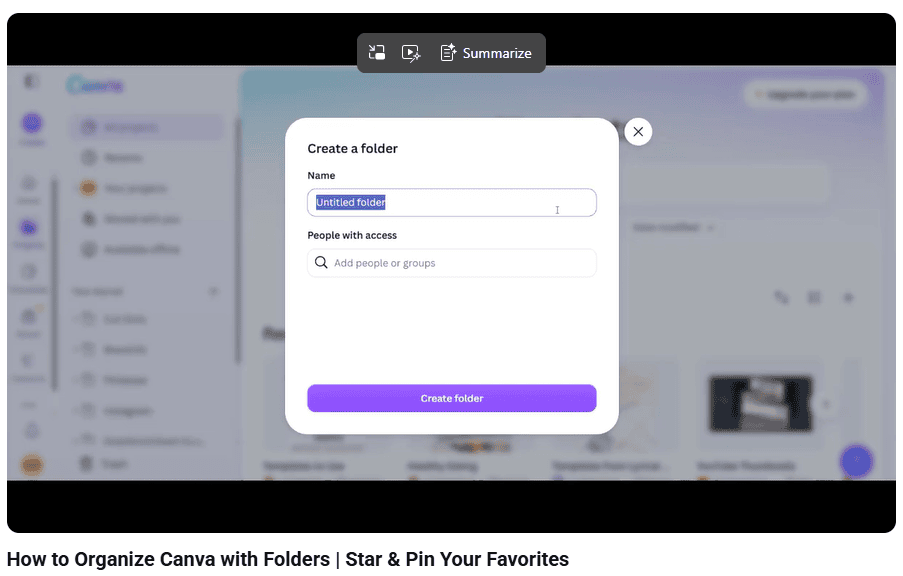
Now that you’ve seen a few examples of how you can organize your Canva folders, you may be wondering how to actually set them up.
If you want a step-by-step walkthrough, watch my YouTube video on how to organize Canva using folders. I’ll show you how to create folders and organize your designs so you can find what you need more easily.
Final Thoughts
You don’t have to wait until you have 500 Canva designs before organizing them. Start building a simple system now and adjust it as your projects grow.
A little organization today can save you a lot of time and frustration later. Trust me, you’ll thank yourself later!
Best wishes,
Meli