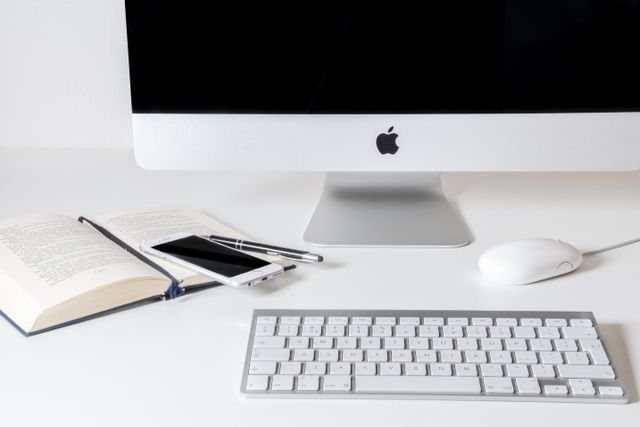
When you’re feeling anxious or under a lot of stress, an extremely cluttered home can make things feel even more overwhelming. Physical clutter often adds to the mental load many moms are already carrying. That’s why having a simple decluttering checklist can be so helpful.
However, clutter isn’t limited to our homes. It can also build up in our digital spaces, from overflowing email inboxes to crowded smartphone screens and disorganized computer files. Digital clutter can create distractions, reduce productivity, and add unnecessary stress to your day.
Let’s take a look at a digital decluttering checklist to help you clean up your smartphone and desktop.
Removing Apps on an iPhone Smartphone
When you buy a new phone, you’ll probably notice that it comes with several pre-installed apps. Many of these apps are ones you may never use.
Take a few minutes to explore them and remove any that are simply taking up space on your device. If you’re anything like me, you’ve probably downloaded apps that seemed interesting at the time, only to forget about them later. Before long, those unused apps can take up valuable storage space and add unnecessary clutter to your phone.
Home Screen
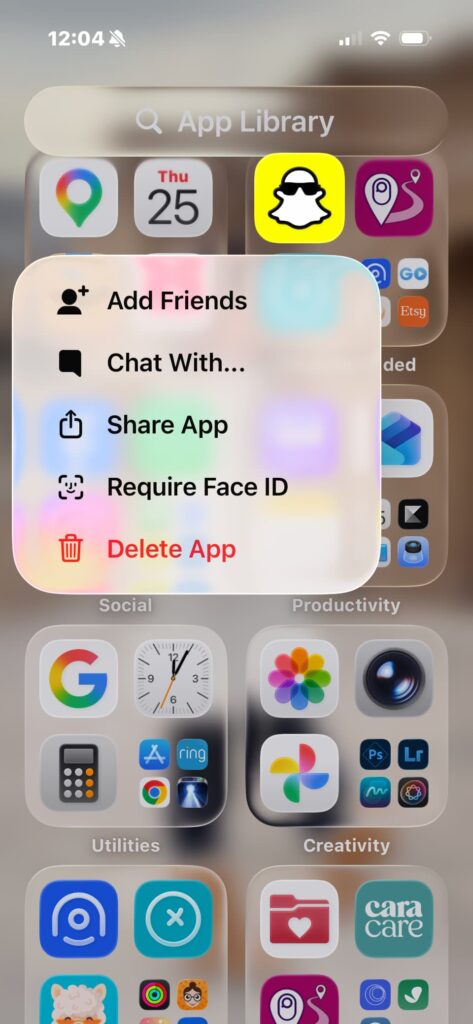
- Press and hold the app you want to remove.
- Select Delete App.
- Follow the on-screen prompts to confirm the deletion.
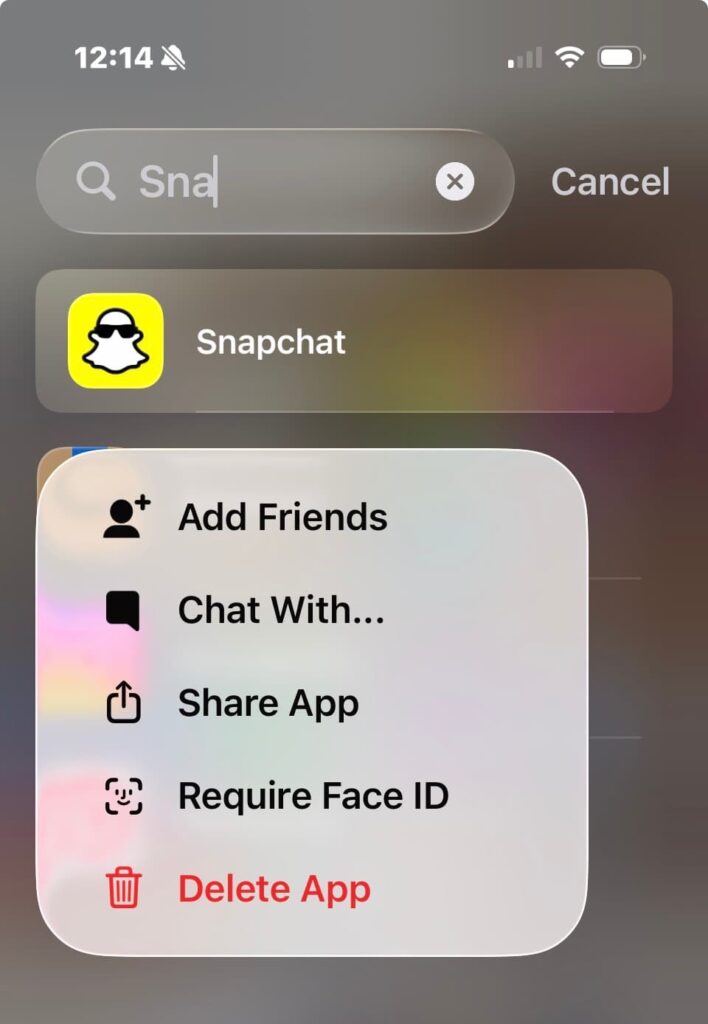
App Library
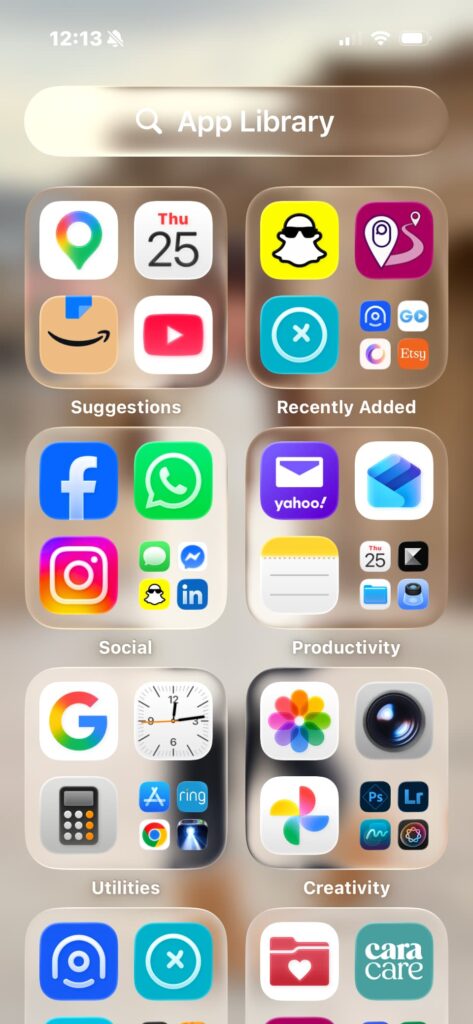
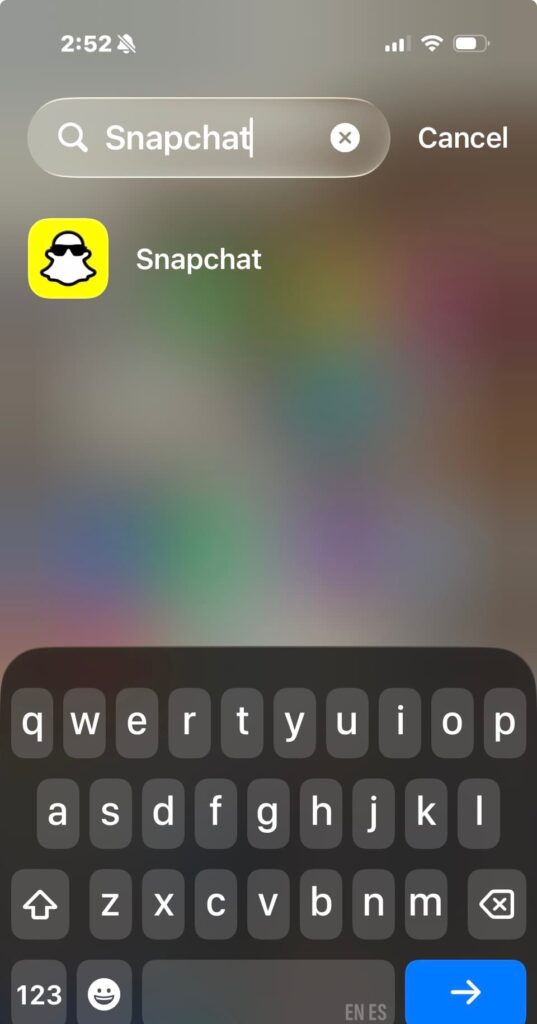
- Swipe left through your Home Screen pages until you reach the App Library.
- Tap the search bar at the top of the screen and type the name of the app you want to remove.
- Press and hold the app icon.
- Select Delete App.
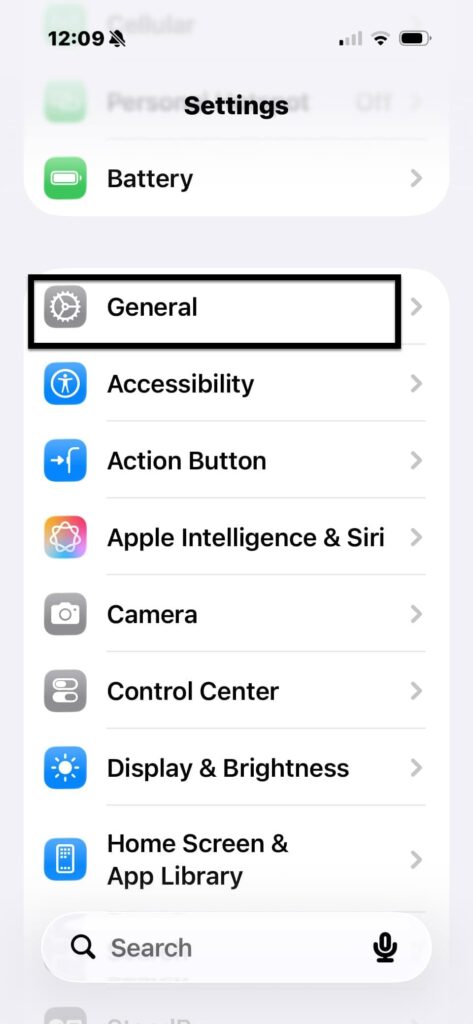
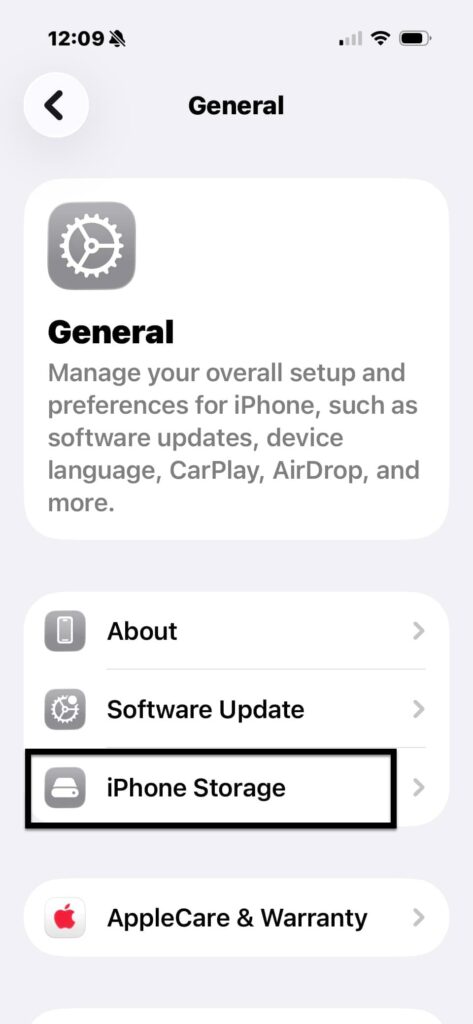
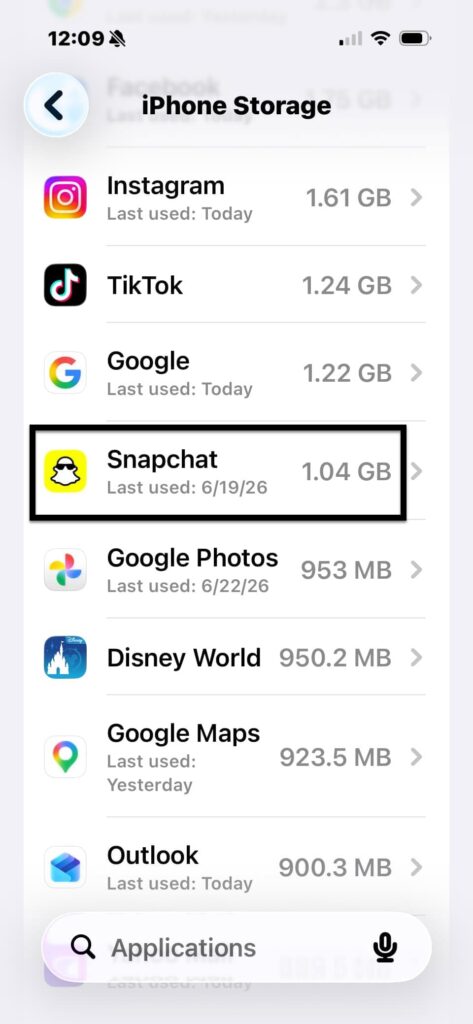
Storage
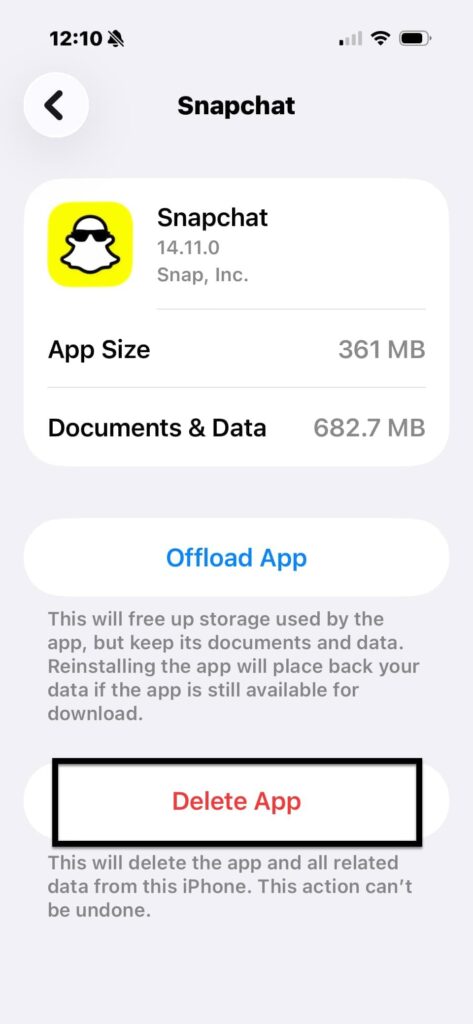
- Open Settings.
- Select General.
- Select iPhone Storage.
- Choose the app you want to remove.
- Select Delete App.
Don’t Forget Your Downloads/Voicemails
Downloads
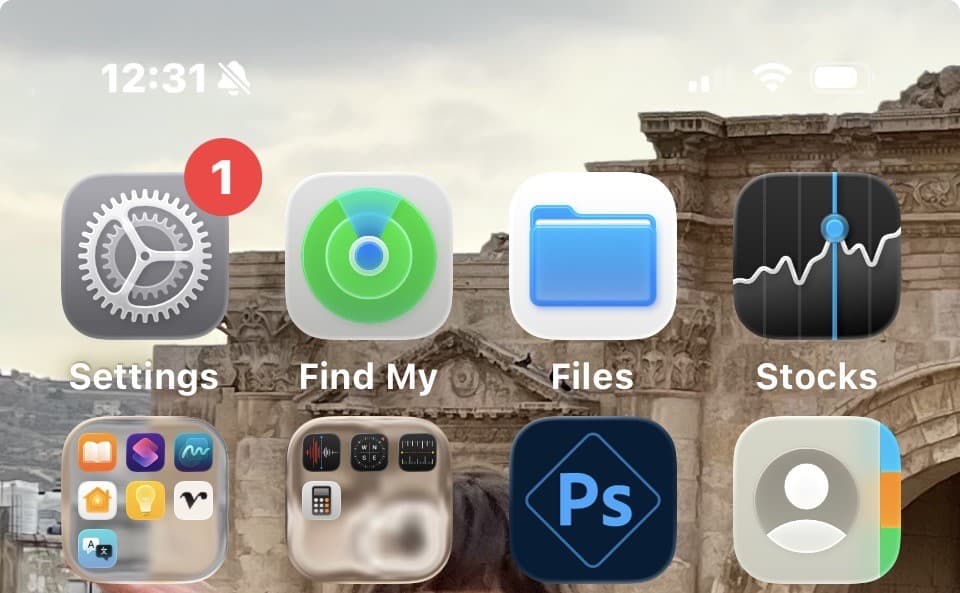
- Find the Files app on your Home Screen.
- Select the app.
- Select the file and then click Remove App.
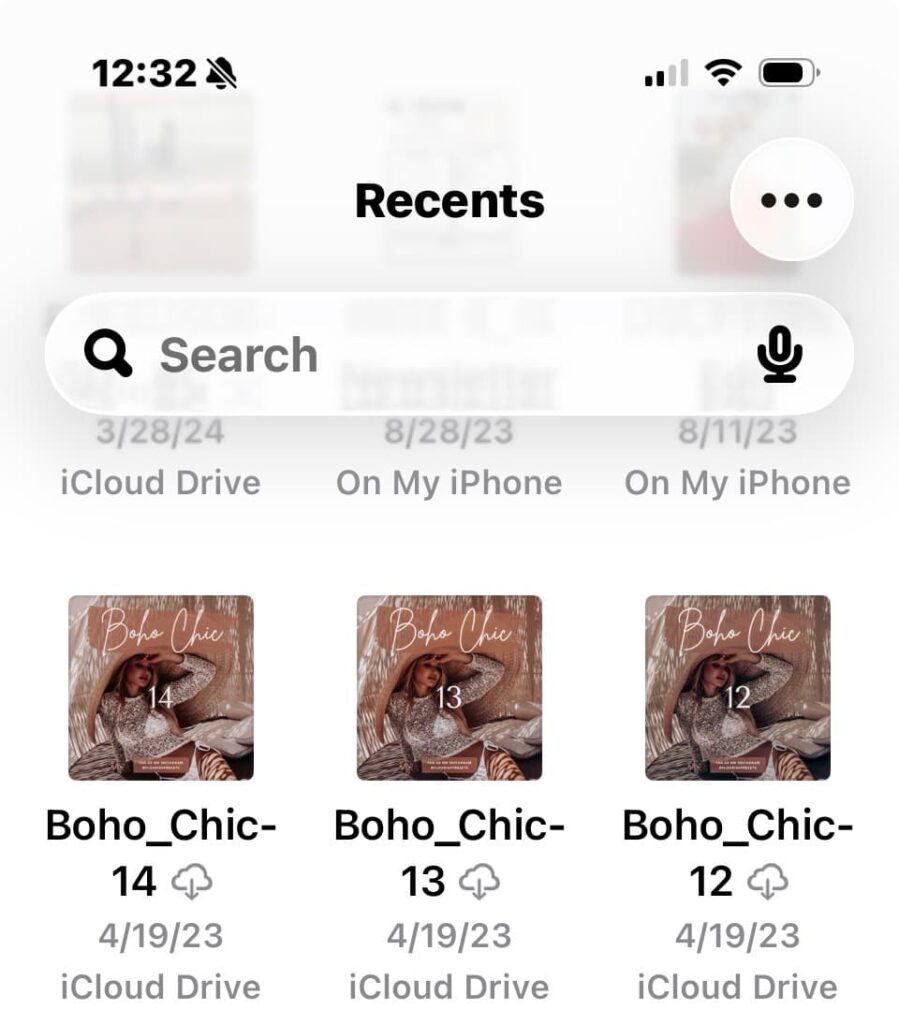
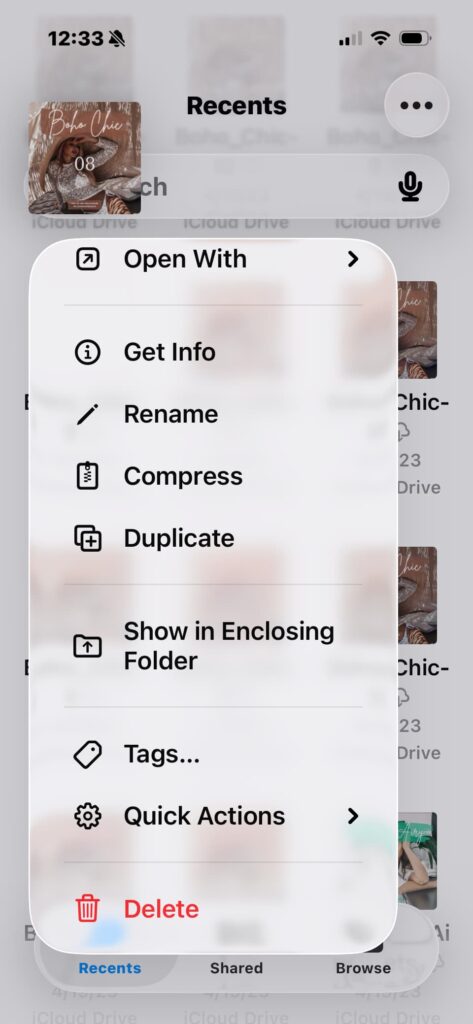
You can also move important files to iCloud Drive if you want to keep them without storing them locally on your device.
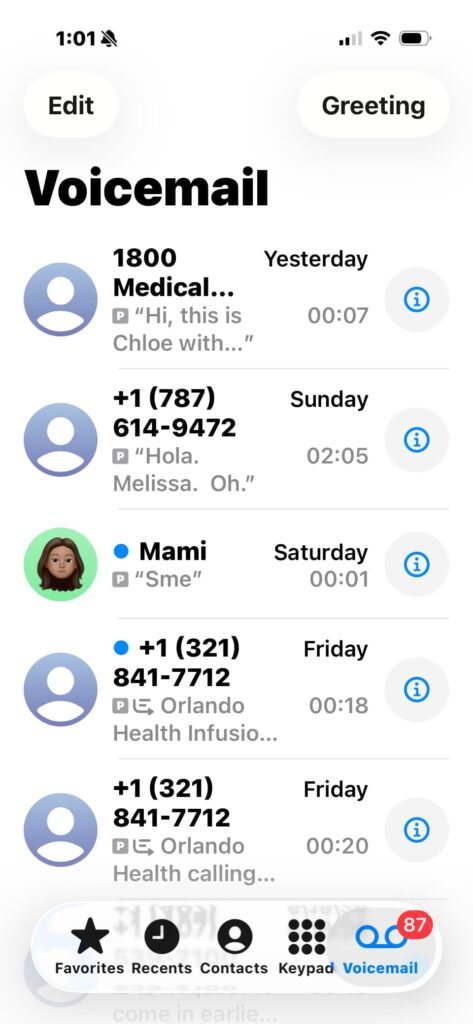
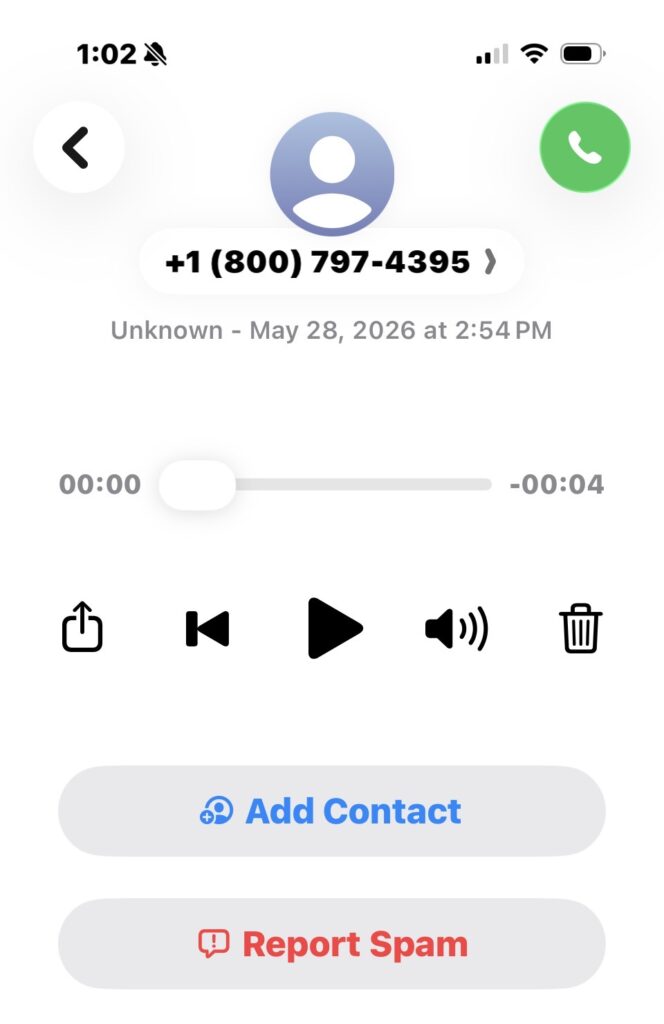
Voicemails
- Open the Phone app from your Home Screen.
- Select Voicemail in the bottom right corner.
- Review your messages and delete any you’ve already listened to and no longer need.
Bonus Tip: Organize Your Apps
One simple way to keep your Home Screen tidy is by grouping similar apps into folders. This makes it easier to find what you need and reduces visual clutter at a glance.
Cleaning up Photos on iPhone
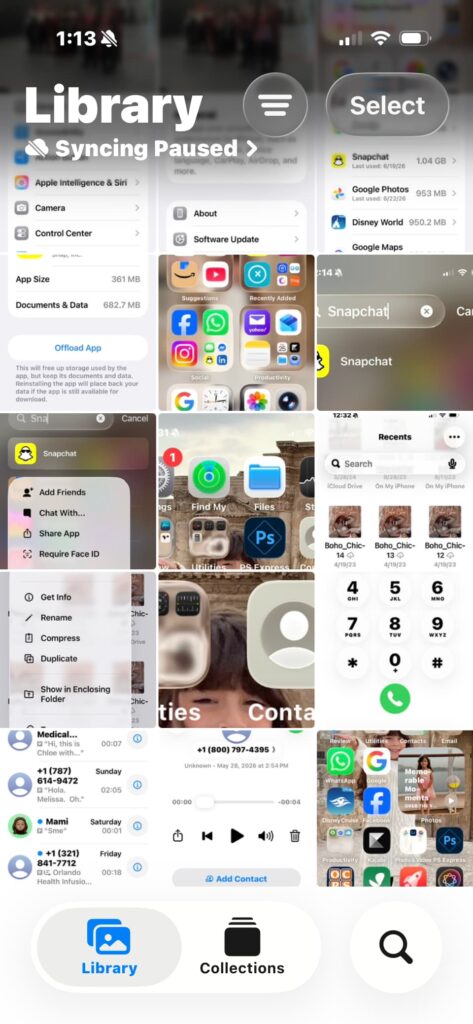
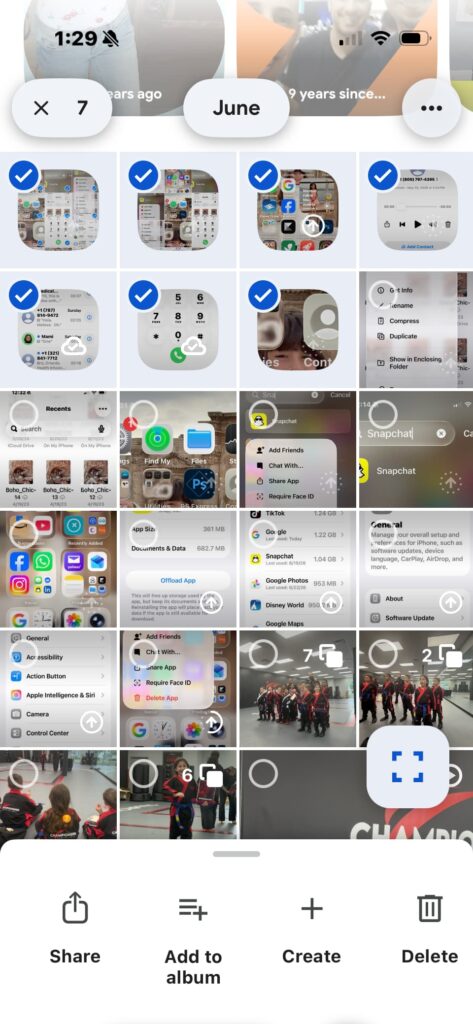
We often take random photos that we don’t end up needing or wanting to keep. If those images aren’t regularly removed from your Photos app or Google Photos, they can quickly add up, leading to thousands of unnecessary files and taking up valuable storage space.
- Open the Photos app on your iPhone.
- Cl8ick on Select in the top right corner.
- Choose the photos you want to delete.
- Click on the trash can icon to delete them.
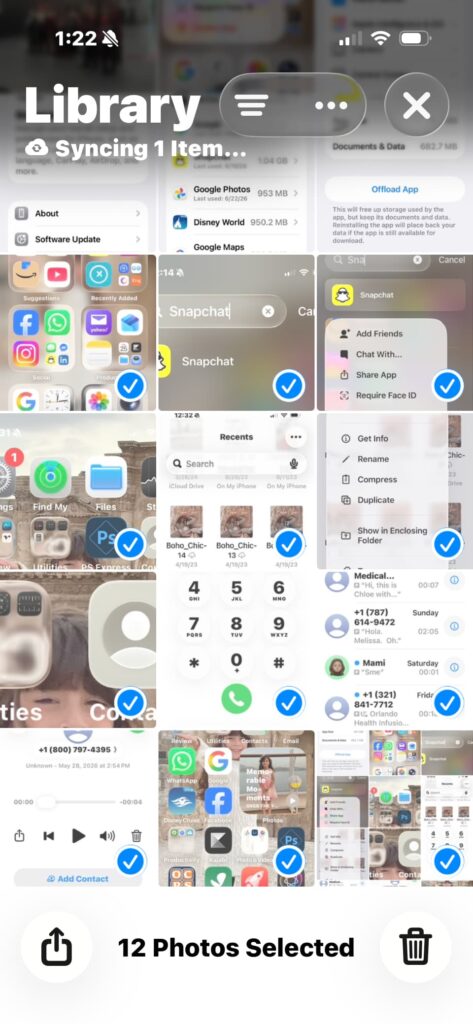
Note: If you use Google Photos, the steps for cleaning up your library are very similar. You can select photos, move them to the trash, and permanently delete them from the Trash folder if needed.
Desktop Clutter
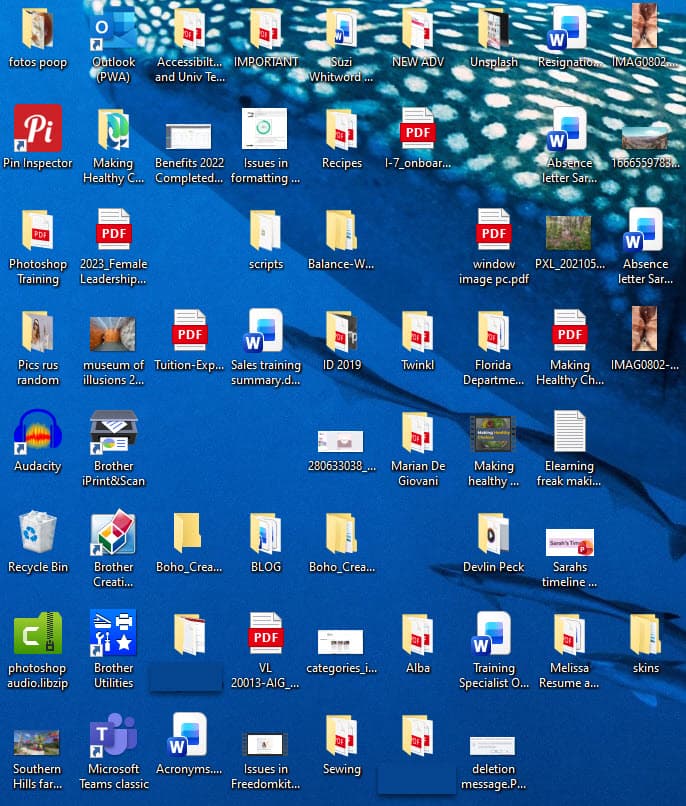
I don’t know about you, but my desktop can sometimes get a little chaotic with all the files I download and save. I’ve learned the hard way that not organizing files from the beginning can quickly become overwhelming.
Let’s take a look at an example of a cluttered desktop (and this is not even the full picture).
The Key to Avoiding Desktop Clutter
The key to avoiding desktop clutter is simple:
- Organize files into folders with clear, descriptive titles
- Regularly delete files you no longer need
Even if some files are already placed in folders, individual loose files can still build up over time. These scattered items create visual clutter and can make your desktop feel disorganized and overwhelming.
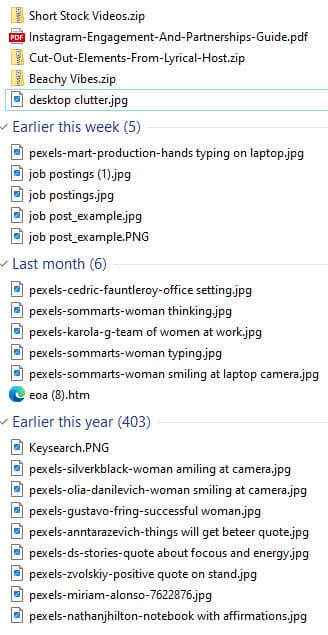
Don’t Forget Your Downloads Folder
Just like on your phone, it’s important to regularly check your Downloads folder and clean it up.
You can:
- Remove files you no longer need.
- Create folders to organize your files by category.
- Move files into appropriate folders on your desktop or in cloud storage.
Final Thoughts
Digital clutter can build up quietly over time, but taking small, intentional steps to clean it up can make a big difference in how your devices and your mind feel.
You don’t have to do everything at once. Use this digital decluttering checklist and start with one area, like your phone apps, photos, or desktop files, and work through it bit by bit. Over time, these small changes add up to a more organized and less stressful digital space.
Best wishes,
Mel